
A Simpler Way to Close and Send Trips
Our latest ELOG update changes how you close, send, and delete your trips. Based on your feedback and new DFO requirements, ending (and sending) a trip is now more streamlined, while deleting data takes fewer steps.
Here are the two main changes:
- A “Close and send to DFO” button that closes your trip and sends it to the DFO in one step
- A red trash can (or “Delete”) button for deleting trips and forms
Closing Your Trip
The new “Close and send to DFO” button ends your trip and sends it to the DFO at the same time. That’s one less step at the end of your day (see below for more details on status labels).
Once you close a trip, you cannot add any more forms to it, so only close your trip when you are 100% sure that you’ve filled in all necessary forms for that trip. Once your trip has been closed and sent to the DFO, you will need to contact them directly to make any updates or edits.
Why the change? A “Close” button is now required by the DFO.
Understanding Trip and Form Statuses
You’ll now see status labels in two places:
- Under each form on the “Current Trip Logs” section of your ELOG, you’ll see the status of that individual form: Open, Closed, or Sent.
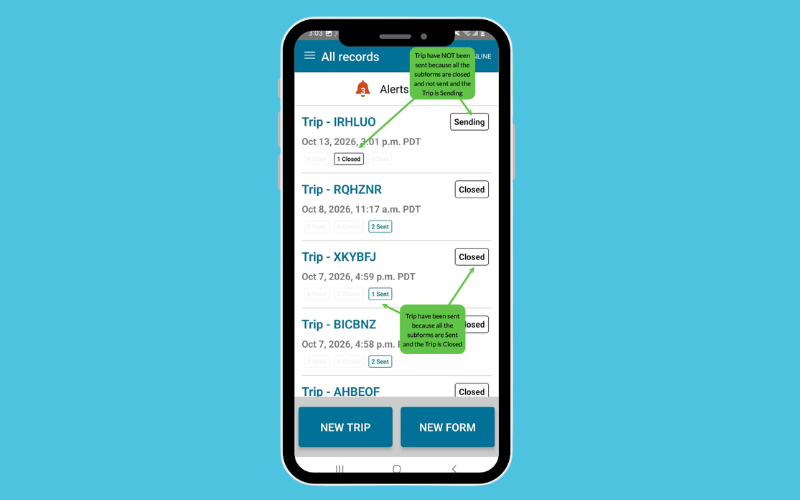
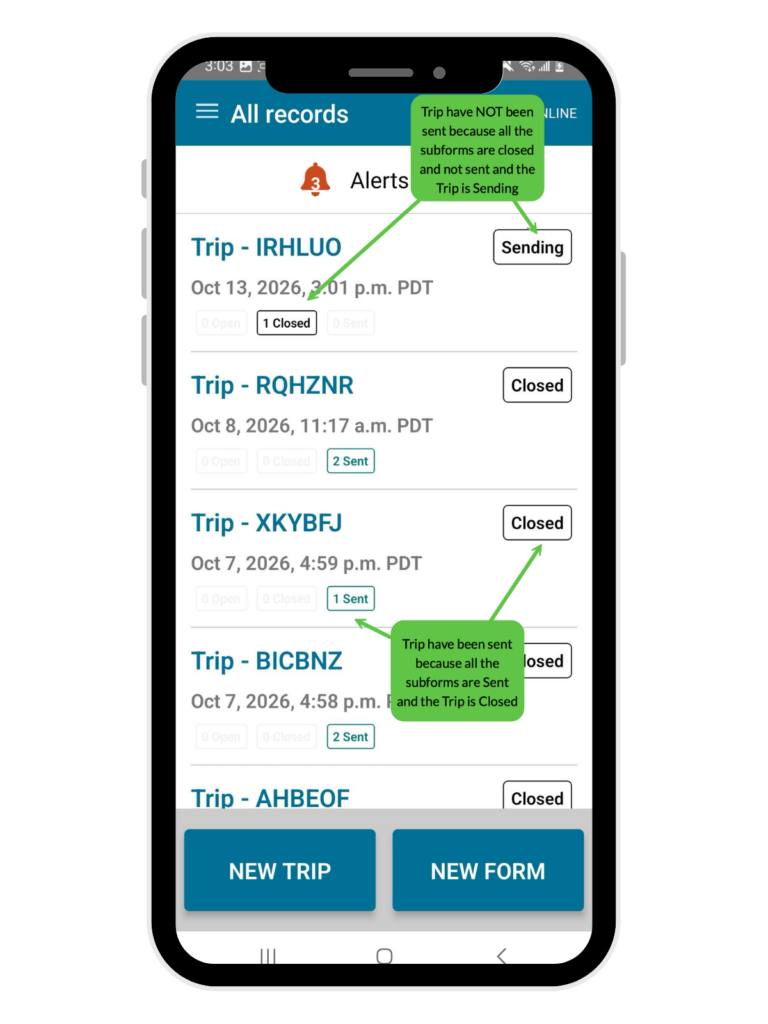
- To the right of the trip number, you’ll see the status of the entire trip. It could say Open, Closed, Sending, or Failed to send, showing the status of your entire trip.
Closed now means closed and sent to the DFO. If a trip shows Failed to send on the right-hand side of your form, you can go to your Transmission Log to determine the cause, which could be something like “DFO server down” or “wrong ELOG key”. If you need help determining why your trip didn’t send, please contact us.
Statuses are a quick visual check, but your Transmission Log is the best way to confirm a trip was sent (see below).
Deleting Trips and Forms
The red trash can replaces our previous delete functionality.
- To delete a single form: tap the trash can to the right of that form.
- To delete an entire trip: tap the trash can at the top right of the trip. If the trip still has open forms, the app will ask you to delete those first. Tap the trash can beside each form, then delete the trip.
Note: You can only delete forms and trips before they have been sent to the DFO. Once they are closed and sent, you will need to contact the DFO to make any changes.
Finding Your Trips: Current Trip Logs vs. All Records
When you open the app, you’ll land on Current Trip Logs. This only shows trips that are still active (not closed).
Once you close a trip, it will no longer appear in Current Trip Logs. To see every trip you’ve ever logged, go to All Records.
Your Transmission Log Is Your Receipt
Think of your Transmission Log as your receipt. It is the most reliable way to check whether a trip has been successfully sent to the DFO, and to see all of your sent trips.
If you’re ever unsure whether a trip went through, check your Transmission Log first.
Starting a Trip and Adding An Effort
To start a new trip, tap the plus (+) sign.
To start an effort, tap the plus sign within your trip. Once your efforts have started, tap any effort (for example, Effort #1) to see its details.
Trips from 2025 and early 2026
If you’ve used our ELOGs for a few seasons already, you will see a “closed [sent]” label next to your trips that were closed before this update happened in Fall 2026. No further action is needed on your part for these old trips.
What These Updates Mean for You
- Fewer taps to end and send a trip
- Easier deleting with one trash can button
To get these changes, update your Vericatch ELOG app. You can also find more details on our Software Release Details page.
Questions?
Our team is here to help. Call us at 1-888-221-1953, email info@vericatch.com, or visit our Support Centre. Harvesters in LFAs 33, 34 & 35 can also join one of our November In-person ELOG sessions.
We always appreciate your feedback and input, that’s how we keep improving our ELOGs, so reach out anytime you have questions or feedback!

